Install Unsqueeze from the Chrome Web Store · Source code on GitHub
Updated October 4, 2026: Unsqueeze has been approved and is now available on the Chrome Web Store. You can install it directly in Chrome without downloading a ZIP or enabling Developer mode.
I wanted to use my camera with a 1.5× anamorphic lens for Google Meet calls. The camera already worked as a USB webcam, but the image arrived squeezed: faces looked too narrow, and Meet had no control to correct the proportions.
I built Unsqueeze with Codex to handle that correction inside Chrome. It processes the selected camera's video before Meet sends it to the other participants. The result worked in my own call setup. I initially released the extension on GitHub under the MIT license, and it is now also available through the Chrome Web Store.
Correcting the outgoing image
An anamorphic lens compresses the scene horizontally. With a 1.5× lens, restoring its proportions means expanding the horizontal dimension by that factor relative to the vertical dimension. Correcting only the appearance of the local preview would leave everyone else seeing the squeezed image.
Unsqueeze works on the camera stream supplied to Meet. Other participants receive the corrected video, while microphone tracks pass through unchanged. In Meet's settings, I still select my normal camera; the extension does not add a separate camera device.
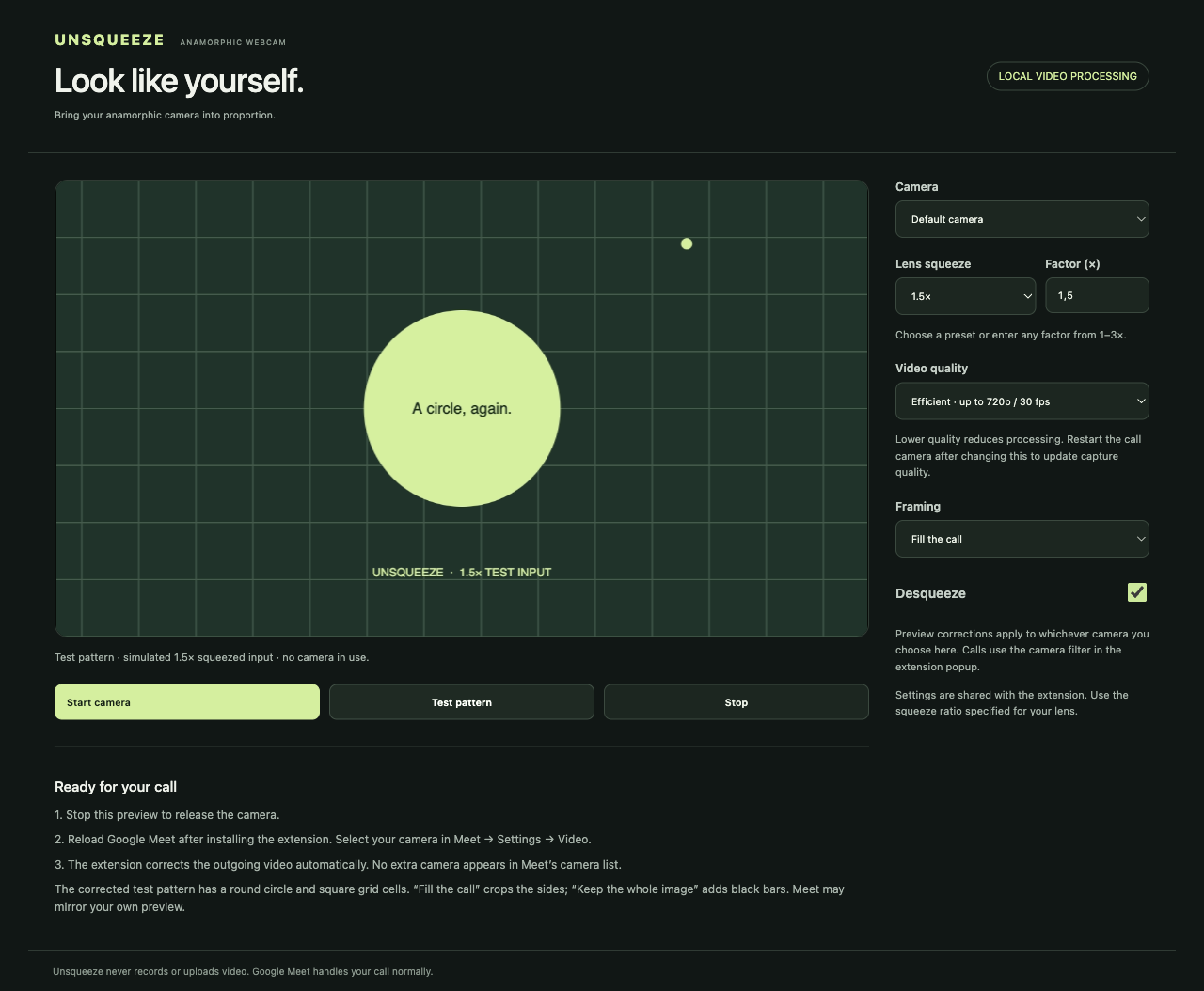
There are two framing choices. Fill the call crops equal amounts from the sides to fill the video frame. Keep the whole image preserves the scene with black bars above and below. Both restore proportions; the choice is how much of the wider image to keep.
The extension is independent of camera and lens brands. It works with the video feed Chrome already recognizes, whether that comes from a USB camera, capture device, or camera utility. That still requires a working webcam setup: Unsqueeze does not supply drivers or make a camera available to Chrome on its own.
Presets and custom factors
The first version was tailored to my own lens. Turning it into something useful to other people meant removing that assumption from the name and controls.
The current release offers presets for 1×, 1.25×, 1.33×, 1.5×, 1.6×, 1.8×, and 2×, alongside a custom field from 1× to 3× in 0.01 increments. The two controls stay synchronized. Typing a known factor selects its preset; another value selects Custom.
An optional camera-name filter limits correction to a particular camera. That is useful when switching between an anamorphic setup and a laptop webcam. With a regular lens, correction should be off or set to 1×. If another camera utility already desqueezes the image, it should only be corrected once.
The preview also includes a moving test pattern that needs no camera access. It simulates a fixed 1.5× squeezed source: at a 1.5× setting, its circle becomes round and its grid cells become square. The screenshot above shows that corrected pattern and the current controls.
Reducing processing work
Heat became a concern during development. An unrelated development process accounted for part of the load on my computer, but it was also a reason to examine the extension's frame processing more carefully.
Unsqueeze now defaults to Efficient, which caps corrected output at 1280×720 and 30 frames per second. Low power lowers those limits to 640×360 and 24 fps. Source quality keeps the incoming resolution and frame rate for people who prefer that tradeoff.
Excess frames are dropped before drawing. With correction off or a 1× factor, frames pass through without a canvas redraw. Compatible cameras are also asked for lighter capture modes, while respecting the call's required constraints.
In a controlled comparison using 120 synthetic 1080p frames with 60 fps timestamps, Efficient rendered 77.8% fewer output pixels than the earlier processing path. Low power rendered 95.6% fewer. Those are reductions in rendering work, not measured reductions in CPU use or temperature. Meet still has to encode and transmit video, and its effects and other participants add their own load. The performance notes describe the measurement and its limits.
For a less demanding setup, choose Low power and restart Meet's camera so the capture request can change too. Stop the standalone preview before using the camera in a call.
Install it from the Chrome Web Store
The simplest installation is now through the Unsqueeze listing on the Chrome Web Store.
- Open the listing in desktop Google Chrome and click Add to Chrome.
- Review Chrome's installation prompt and confirm Add extension.
- Pin Unsqueeze from Chrome's puzzle-piece Extensions menu.
- Open Unsqueeze, leave Desqueeze video on, and choose the squeeze factor specified for your lens.
- Reload any open Google Meet tabs. In Meet's video settings, select your normal camera.
There is no ZIP to extract, folder to keep in place, or Developer mode to enable for the store version. Chrome handles updates for extensions installed through the store. A managed work or school browser may still restrict installation.
Switching from the GitHub version
If you already installed the unpacked GitHub version, note your squeeze factor, framing, quality mode, and camera filter first. Open chrome://extensions and disable or remove that copy, then install the store version and set those preferences again. Reload Meet afterward. Keep only one copy enabled: two active copies can apply the correction twice.
Manual installation remains available
The GitHub ZIP is still available for people who prefer an unpacked installation or want to work with the source. Extract it to a permanent folder, enable Developer mode in chrome://extensions, and use Load unpacked to select the folder containing manifest.json.
That download includes an offline START-HERE.html guide. The manual installation guide covers setup and troubleshooting. Updates to an unpacked copy remain manual: replace its files at the same folder path, click Reload on its Chrome extensions card, and reload Meet.
What has been checked
The original GitHub release passed nine automated geometry and settings tests. Browser checks covered frame proportions, resolution and frame-rate caps, bypass behavior, camera cleanup, cloned tracks, audio lifetime, and a local WebRTC connection. The presets and custom values were checked for persistence and synchronization. The published ZIP was downloaded again and compared with the verified package.
My real-camera confirmation was on macOS with Google Meet in desktop Chrome. Other operating systems, browsers, calling services, and camera combinations have not been verified. This is a browser extension for Meet, not a system-wide virtual camera for desktop calling apps.
Video processing stays on the device. Unsqueeze has no recording, analytics, account, or upload service; Google Meet still transmits the call normally. Preferences and the latest camera-status message are stored locally in Chrome. The repository includes privacy details, the source, tests, and the MIT license for anyone who wants to inspect or adapt it.