See WALKABOUT and download it free · Version 0.2.0 on GitHub
I make photo-walk videos: footage of the walk, with the photographs I take along the way. Editing them leaves me repeating the same jobs. I have to deal with strangers' faces in the video, work out where each photograph belongs, add its camera settings, and put together a collection of the best shots at the end.
WALKABOUT is the set of tools I built for that workflow. The first free release brings Face Privacy, Arrange Photos, Photo Presentation, and Contact Sheet / Best of the Walk to DaVinci Resolve and Adobe Premiere Pro. There is one installer for each editor, and each installs all four tools.
Face Privacy: blur faces, then review the result
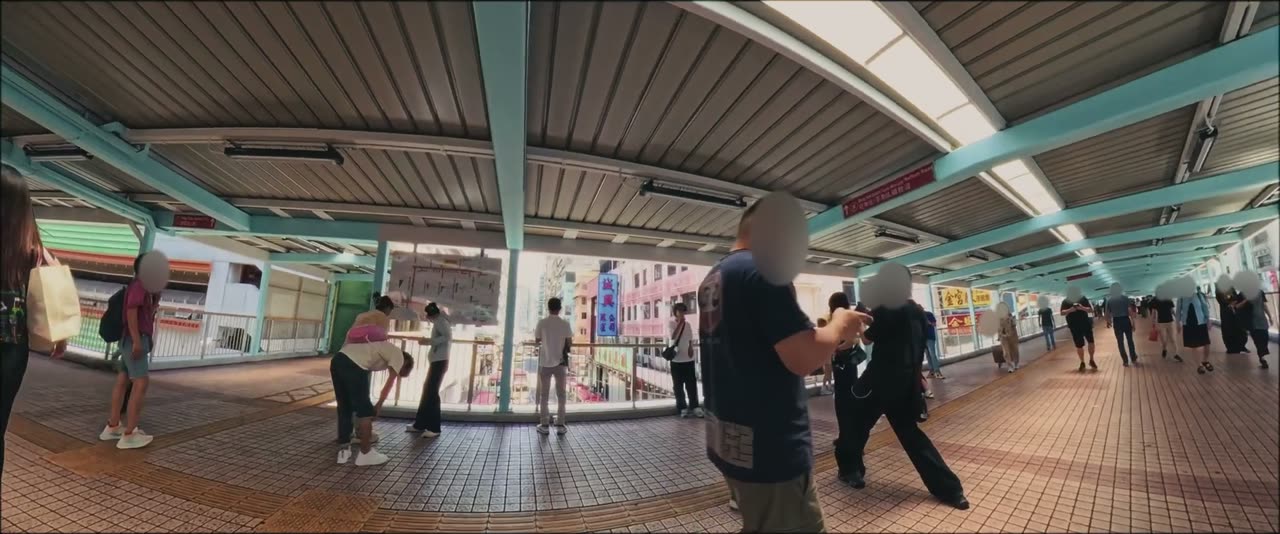
Face Privacy analyzes a clip, finds faces and saves the results in the project. You choose how to cover them: a blur, an emoji or an image of your own. You can change the appearance without analyzing the clip again.
The mask overlay shows where the effect is working. If it misses a face, you can add a manual correction. There is also an optional recognition step for leaving yourself or friends visible; its people library stays on your Mac.
The demonstration on the WALKABOUT page uses my own footage from a Hong Kong footbridge. You can switch between the final output and the cyan mask overlay. It is real output from the Resolve effect, analyzed once without manual fixes.
Detection can miss small, blurred, sideways or partly hidden faces. Reviewing the output remains part of the job. The tool saves masking work; you still decide whether the finished video is ready to publish.
Arrange Photos: keep the gaps between captures
After a walk, I used to scrub through the footage to find the moment each photograph was taken and place it by hand. Arrange Photos reads capture times from the selected photographs and spaces them out on the timeline using those gaps.
The earliest capture stays anchored to its current timeline position. I then move the group to line it up with the video. It does not guess that alignment for me. Photos without usable metadata, or from a different camera, may be skipped.
The Florence example shows ten photographs spread across the walk. A pigeon photograph taken 5 minutes and 37 seconds after the first capture lands that far after it in the arranged group.
In Resolve, I arrange before adding effects, grades or keyframes, because the arranged copy does not transfer all styling. In Premiere, the command clones the selected photos onto new tracks, preserves their attached effects and removes their original placements in a single undoable transaction. The footage stays in place.
Photo Presentation: frames and camera settings
Photo Presentation puts a frame around a photograph and reads camera and exposure information from its EXIF metadata. It handles the repeated work of typing camera settings into captions for each picture.
You can edit captions, choose an installed font, change the background and move or scale the whole card. In Premiere, use the editor's Fit control when a large source photo is cropped by the sequence.
The pigeon and Palazzo Vecchio examples on the landing page are my own Florence photographs, rendered by the Resolve effect with its default settings.
Contact Sheet: a closing collection
Contact Sheet / Best of the Walk builds a grid of up to 12 photographs. It can feature each photo in turn with its camera settings, then return to the grid. I choose the photos and timing instead of building every layout and zoom separately.
The landing page includes a real ten-photo animation from the Resolve effect. Gallery photos remain linked locally, so keep those files available when moving a project.
Download the first release
WALKABOUT v0.2.0 is free for personal and commercial use. There is no account, trial or watermark. The public GitHub repository contains the installation guide, freeware license and releases; the development source is private. Unmodified installers can be redistributed with their notices.
Both installers require an Apple Silicon Mac running macOS 13 or later. The Resolve package requires DaVinci Resolve Studio 21.1 or later. The Premiere package is for Premiere Pro 2026, tested with 26.5.1. Intel Mac and Windows are not supported in this release, and the free edition of Resolve has not been tested.
Save your work and quit the editor before installing. After reopening it, look for WALKABOUT in the effects list. Arrange Photos appears under Workspace → Scripts → WALKABOUT in Resolve, sometimes inside Utility, and Window → UXP Plugins → WALKABOUT in Premiere.
The installers are not Developer ID signed or notarized. The download page explains installation and links to the packages and their checksums.
What was checked for v0.2.0
Both installers completed successfully on my Apple Silicon Mac on 30 September 2026. In Premiere, I selected three photos in the isolated validation project, ran the installed Arrange Photos command, and used one Undo to restore the original positions and 16-second timeline. All seven arrangement planner tests passed.
The native effects also have earlier live checks covering face analysis and manual corrections, photo captions and contact sheets. Those checks establish the workflows I tested. Broader playback and export profiling, full control parity, HDR/log/ACES, RAW and retiming still need more testing.
The plugins process footage and people libraries locally. They do not upload your media. WALKABOUT is provided as is, without warranty; if something breaks, open a GitHub issue with your macOS version, editor version and the steps that reproduce it.